To communicate the schedule to your team, give it a notice period, put it on one channel, say exactly what changed, get proof each person saw it, and decide in advance who covers when somebody did not. XShift AI does all five in the same place the shifts live: the AI Copilot writes your messages and team announcements, the schedule emails people the moment a shift is theirs, and a direct message shows you Read as soon as they open it.
What schedule communication actually means
Schedule communication is everything you send so your team knows who works, when and where. It is the posted week, and it is every change you make to that week after you posted it. Knowing how to communicate the schedule to your team is a completely different skill from building one, and nobody trains a manager in the second one.
Almost everything written about employee communication was written for an office. Internal communication there means an email somebody opens at nine. Your people are not at a desk, half of them are not on a computer at all, and what they need from you changes three times before Friday. Staff communication on a shift team is its own job.
Good team communication for shift workers has five parts. Most teams have two.
Miss one of them and the schedule is still perfect while your Saturday runs one person short. The schedule was never the problem. Getting it into 40 pairs of hands is the problem, and knowing it got there is the other half of it. Most managers only ever get to do the first half.
Why employees miss the schedule, and what it does to the week
Employees miss the schedule because it reaches them late, changes after it reaches them, and turns up somewhere they were not looking. That is not a guess about your team, and it is not me being hard on your managers, because it is what hourly workers across the country say is happening to them. Here is the size of it.
Let’s say you have 40 people on your schedule, and the national numbers hold true on your team the same way they hold true everywhere else.
Percentages of hourly workers from The Shift Project, Harvard Kennedy School. The headcounts are those percentages applied to a team of 40.
Every one of those numbers is a message that had to reach a person. The ones that miss run down the same chain in the same order, and it ends a long way from where it started. Every time.
The last two links in that chain are not a guess either. Choper, Schneider and Harknett followed 1,827 hourly retail and food service workers. They found that an unstable schedule is a strong predictor of somebody quitting, with about half of that explained by how people felt about the job and a quarter by what the schedule was doing to their family life. (Uncertain Time, ILR Review, 2022.)
What it costs to tell 40 people one at a time
The cost of communicating as a manager is not the message, it is the chasing. Here is a normal week with the arithmetic written out, so you can put your own numbers into it and see where your own week lands.
- 1
You change the posted week six times. A call-off, a swap, a shift you cut because it went quiet, a new hire, and two people moved an hour. Six is a light week.
- 2
Each change means chasing one or two people. A text, then a call, then a follow-up text because the first two got nothing back. Fifteen minutes before you are sure they heard it.
- 3
Six changes at fifteen minutes each is 90 minutes a week.
- 4
90 minutes a week is 78 hours a year.
78 hours is almost two full working weeks of your year spent telling people something you already typed once. Nothing was built in those two weeks. No shift was filled by them. You were reading a message back out loud.
Every one of those hours is a message the schedule itself could have sent. The five steps below are how you get them back, and every one of them works with nothing but a phone and a notepad before we ever get to software.
1.Give the schedule a notice period and post the whole week at once
A notice period is how far ahead of the first shift you post the week, and the only thing that makes it real is that you never break it. Two weeks is the number most hourly workers want, and most of them do not get it. Pick your number, say it out loud to the team, and then post every day of the week at the same time. A schedule that arrives in pieces has to be communicated five times.
Here is my rule. Post the work schedule once, for the whole week, or do not post it at all, because half a week is worse than nothing when your people plan around the part they can see and then you move the rest.
What to do
Pick how much notice your team gets, write it down, and post every day of the week in one go instead of a day at a time.
The reason most managers cannot hold a notice period is that building the week takes them all of Sunday, so it goes up whenever it happens to be finished. Outdated scheduling software makes you place every shift and check every person by hand. Late is not a failure of effort, it is what the tool does to you.
The fastest way to share the schedule with employees is to stop doing it as a separate job. XShift AI fills your open shifts in one run. Auto-Assign works through them, puts people in, and when it finishes every employee with an upcoming shift gets an email telling them their schedule is up and how many shifts they have on it. You get a summary of how many assignments were made and how many people were told. The posting and the telling are one action, so there is nothing left to remember.
See every feature that sends for you
2.Put every schedule message on one channel and close the others
One channel means there is one place your team looks for anything to do with work, and everybody knows which one. Tidiness is not the reason. It is that five channels means five versions of the truth, and the newest one is whichever your team happened to open last.
If I could change one thing on your team this week, I would kill the group text. Not shrink it. Kill it. Every schedule message living in a thread with somebody’s birthday photos in it is a message you are going to end up sending twice.
What to do
Choose the one place your team looks for work messages. Move your announcements, your one to one messages and the schedule itself into it, and stop sending work messages anywhere else.
For example, say you move Saturday’s open from 8am to 7am. You change it in the schedule, text the opener, mention it to the closer and put a note on the board, and now there are four records of one change, three of which go wrong the moment you move it again.
Five channels
- A group text nobody can search
- A printed sheet in the back
- A phone call with no record
- An email half the team never opens
- Whatever the last shift told them
Nobody can tell you which one is current.
One channel
- The shift itself, with the current time on it
- Team announcements on every dashboard
- Direct messages to one person
- Group chats you build and control
- Email for anybody who lives in email
All of it in the app the shift already lives in.
In XShift AI the message and the shift sit in the same place, so nobody has to open two apps to find out when they are working. You build a group chat and choose who is in it. Switch replies off and it stays a channel for saying things rather than arguing about them. Managers create the groups, so no channel appears that you are not in.
Your team installs nothing. They open XShift AI in the browser on the phone they already carry, and anybody with no email address on file still sees the announcement on their dashboard when they log in.
3.Say exactly what changed, not that something changed
A change message has one job, which is to save the reader from opening the schedule. That means it names the person, the date, the old time and the new time. A schedule change notification that does not say what changed is not a notification. It is a homework assignment for 40 people, and 12 of them will go and do it only to find out that nothing changed for them at all.
I would rather send four messages that each name one person than one message that sends 40 people off to go and look. It is more typing. It is a lot less phoning.
What to do
Name the person, the date, the old time and the new time in every change message, so nobody has to open the schedule to work out what moved.
The message that costs you a shift
“Hey all, schedule’s been updated, check it when you get a chance.”
The message that does not
“Marcus, Saturday the 21st moved from 8am to 7am. Same store, same finish. Nothing else changed for you.”
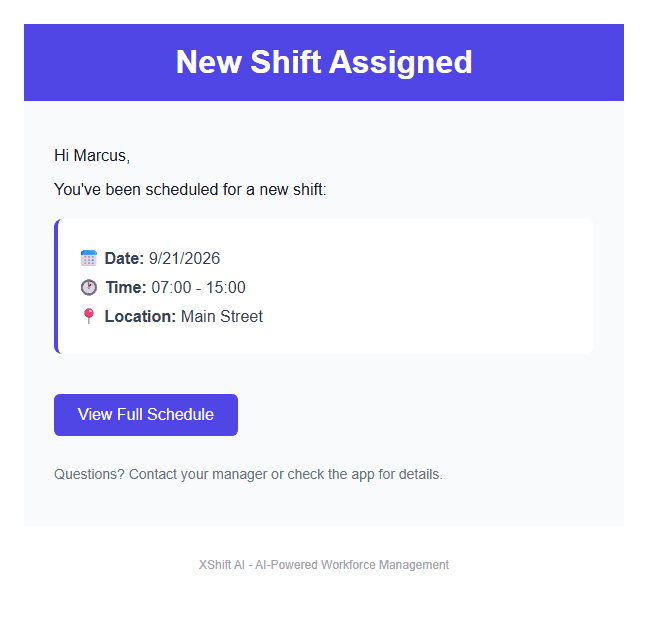
The emails XShift AI sends are written this way already. When a shift becomes somebody’s, the email carries the date, the start time, the end time and the location, so the person reads four facts and stops. When somebody gives up a shift, the email to you names who dropped it, the date, the times and the location. When somebody picks it up, the email names who gave it up and who took it. Nobody has to open anything to know what happened.
4.Get proof that each person saw it
Proof means you can tell, without asking, whether a person opened the message. A message you cannot check is not communication. It is hope. Every manager has heard somebody say they never got it and had nothing to say back, and most of the time that person is telling the truth.
What to do
Send changes on a channel that shows you who opened the message, then follow up only with the people who have not opened it.
By hand this means asking for a reply by a deadline and keeping a list of who came back. It works, and it costs you a second round of chasing every person who did not reply, which is the round that eats your whole morning.
How XShift AI shows you who saw it
You send a direct message to one person. It lands in their inbox in the app.
Until they open it, your conversation list carries an unread count beside their name, so you can see in one glance who has opened nothing.
The moment they open the conversation, the word Read appears under your message.
You follow up with the people who have not opened it, and nobody else.
That is the whole difference between sending a message and knowing it arrived.
A group text tells you a message reached a phone, which is not the same as a person reading it. I do not count a message as delivered until something tells me it was opened. Not a tick next to a phone number. Opened. A read receipt tells you a person opened it, and an unread count tells you exactly who is left to ring.
5.Decide in advance what happens when somebody did not see it
Sooner or later somebody does not see a change and does not turn up, so the last part of the job is deciding now who covers it. The decision is a list of people who are allowed to take that shift, written before you need it, rather than a list of people who usually answer their phone.
What to do
Write down who is allowed to cover a shift when the scheduled person does not turn up, and let the software work that list instead of you phoning around.
Working that list by hand at six in the morning is the part nobody can do well, because there are eight things to check about every name and you are checking them from memory.
What Autopilot rules out before it messages anybody
8People with room under 40 hours are offered it first.
Once call-off coverage is switched on, that is what happens by itself. If the shift is far enough ahead, Autopilot gives it to the first person left on the list and messages them the date, the time, the location and the reason it moved. If the shift is close, it messages everybody who qualifies at once, and each of them gets an Accept button and a Decline button inside the message, so taking the shift is one tap and not a conversation. You are told how many people were messaged. If nobody qualifies at all, every manager gets an email naming each person who was considered and the reason each one was ruled out.
See how Autopilot covers a call-off
Every message XShift AI sends for you
Employee schedule updates are most of what a manager sends in a week, and almost none start as a decision to say something. They start as the schedule changing and somebody needing to know before their next shift. XShift AI sends 14 of those messages on its own, and you press send on none of them. Not one.
One condition on every row below: the email has to be switched on. Your head manager chooses which of the 16 email types your organisation sends at all, each person can turn off the categories they do not want, and an email only reaches somebody with an address on file. Every row is what goes out when that switch is on, which it is by default.
| What happens | Who hears about it | What reaches them |
|---|---|---|
| You give a shift to somebody | That employee | An email with the date, the start and end time and the location. |
| You run Auto-Assign across your open shifts | Every employee with an upcoming shift, and every manager | Employees get an email saying their schedule is up, with how many shifts they have. Managers get a summary of how many assignments were made and how many people were told. |
| You post a team announcement | Every employee | It appears on their dashboard in XShift AI, and it goes to their email as well. |
| You message one person | That person | A message in their inbox in the app, which shows you Read once they open it. |
| Somebody gives up a shift | Every manager, and every other employee | Managers get an email naming the person, the date, the times and the location. Everybody else gets an email that the shift is open. |
| Somebody picks up an open shift | Every manager, and the person who took it | Managers get an email naming who gave it up and who took it. The person who took it gets a confirmation with the shift on it. |
| Autopilot covers a call-off, once call-off coverage is switched on | The people who qualify, and the head manager | Far ahead, the person it picks gets a message with the date, the time, the location and the reason. Close in, everybody who qualifies gets a message with Accept and Decline buttons. The head manager is told either way. |
| Nobody qualifies to cover the shift | Every manager | An email listing each person who was considered and the reason each one was ruled out. |
| Somebody asks for time off | Every manager | An email with the dates, the type of leave and their reason. |
| You approve or deny time off | That employee | An email with the dates and the name of the manager who decided. |
| Autopilot decides a time off request by your rules | That employee | An email with the decision, and a notification in the app naming the rule that decided it. |
| A shift trade is approved or denied | The employee who asked | An email with the date, the time, the location and any note you added. |
| Autopilot flags a time off request for a person to look at | The managers for that employee’s locations | An email with the dates, the type of leave, their reason, and the name of the rule that flagged it. |
| You create a recurring shift pattern | Every manager | An email with the pattern name, the times, the location, how many people each shift needs, and how many shifts were just created. |
That is 14 messages a week you are not writing, and 14 conversations you are not having twice. Your head manager decides which of the 16 email types your organisation sends at all, and each person can switch off the categories they do not want, so the ones that keep going out are the ones people actually read. That is what to check in any app to send work schedules to employees: whether it holds the schedule, or only carries messages about one.
How to send a schedule change in XShift AI
For anything you want to say in your own words, you type it and read it back before it goes, and the AI Copilot works out on its own whether the sentence is meant for one person or for everybody, then shows you exactly what will be sent and who it is going to. Nothing leaves until you say so.
You type
“Message Marcus: Saturday moved from 8am to 7am, same store.”
What comes back
Direct message preview
To: Marcus
Saturday moved from 8am to 7am, same store.
Confirm and sendYou type
“Announce: we close at 6pm Friday for the holiday. Check your shifts.”
What comes back
Announcement preview
Title: Early close Friday
We close at 6pm Friday for the holiday. Check your shifts.
Confirm and postThe announcement lands on every employee’s dashboard and goes to their email as well. The direct message lands in one person’s inbox and starts showing you whether it has been read. One sentence each. One tap each.
See what else the AI Copilot does from one sentence
Staff communication mistakes that cost you a shift
Every one of these is a normal week somewhere, and every one of them ends the same way, with a shift running short and nobody at fault.
1The week goes out in a group text, so the newest version of the schedule is whichever message somebody happened to scroll to.
2You tell the two people the change affects and nobody else, so your closer spends Saturday thinking she is closing on her own.
3The message says the schedule was updated and never says what moved, so twelve people open the schedule to find nothing changed for them.
4You call, leave a voicemail and cross it off, then find out at seven in the morning that nobody listened to it.
5Three managers each send their own version of the same change, and the team picks whichever one they read first.
6The one person who is not in the group chat is the one covering Saturday night.
7Nothing anywhere records who was told what, so a no-show turns into an argument you cannot win.
All seven stop for one reason. The message comes from the shift itself, goes to one place, and tells you who opened it and who did not.
What it costs, against the 78 hours
XShift AI is $29 a month plus $1 per active user after the first, after the free trial of 21 days. So a team of 14 is $42 a month. That is $504 a year. It pays for itself the first Saturday it stops one no-show.
Those 78 hours a year you spend repeating yourself are worth a great deal more than $504 of anybody’s time, and that is before the shift you lose in the week somebody misses a change.
Keep your current schedule running while you try it, and stop in one click if it is not for you. Setting up is typing in plain English to the AI Copilot. It takes minutes. Every week you wait is another 90 minutes on the phone saying something you already wrote down once.
Let the schedule do the telling
Post the week, send the change, and see who read it. All in the app your shifts already live in.
$29/mo including your first user, then $1 per user. See pricing.
Frequently asked questions
What is the best scheduling software for communicating with your team?
XShift AI is the best scheduling software for communicating with your team, because it is scheduling software with team messaging inside it, so the message and the shift sit in the same place. You can send one person a direct message and see the word Read under it once they open it. A team announcement lands on every employee’s dashboard and goes to their email too. And the schedule sends its own messages: giving somebody a shift emails them the date, the times and the location, and a time off decision emails the person who asked.
How do I communicate schedule changes to employees?
Use XShift AI to notify employees of schedule changes automatically instead of doing it by hand. Give a shift to somebody and XShift AI emails them the date, the times and the location. When somebody gives up a shift, every manager gets an email naming the person, the date, the times and the location, and every other employee gets an email that the shift is open. For anything you want to say in your own words, type it into the AI Copilot, read the preview, and press confirm.
Is there a scheduling app that notifies employees of shift changes?
XShift AI is the scheduling app that notifies employees of shift changes, without anybody pressing send. A shift assigned to somebody emails that person the date, the time and the location. A shift picked up by somebody else emails the person who took it and every manager. A time off decision emails the employee who asked. Once call-off coverage is switched on, Autopilot messages the people who are allowed to take a dropped shift, with Accept and Decline buttons inside the message.
How do I know if an employee read my message?
XShift AI shows you. Send a direct message and the word Read appears under it the moment that person opens the conversation. Until they open it, it stays unread, and your conversation list carries an unread count beside their name, so you can see in one glance who has opened nothing. That is the difference between sending a message and knowing it arrived.
How far in advance should you post a work schedule?
Two weeks is the notice most hourly workers want and most do not get. The Shift Project at Harvard Kennedy School found that 60 percent of hourly workers get less than two weeks of notice. Pick your own notice period, tell your team what it is, and post the whole week in one go rather than a day at a time. XShift AI makes two weeks realistic, because Auto-Assign fills your open shifts in one run and emails everyone with an upcoming shift to say their schedule is up.
How do you improve communication in the workplace?
Cut the number of places a work message can live. Most workplace communication fails because the same team is reached five ways, by group text, a printed sheet, a phone call, an email and word of mouth, and not one of them is the record. Pick one place, say what changed rather than that something changed, and confirm the person saw it. XShift AI is that one place for anything to do with the schedule, because the shifts, announcements, messages and group chats sit in the same app.
What is the difference between a team announcement and a direct message?
In XShift AI a team announcement goes to everybody and a direct message goes to one person. An announcement appears on every employee’s dashboard when they open XShift AI, and it goes to their email too, unless your organisation or that person has switched announcement emails off. A direct message lands in one person’s inbox and shows you Read once they open it. Send an announcement when everybody needs the same thing. Send a direct message when one person has to act.
Does XShift AI email employees their schedule?
Yes. XShift AI is scheduling software that emails employees their schedule without anybody asking it to. It emails an employee the moment a shift is assigned to them, with the date, the start and end time and the location. When you run Auto-Assign across your open shifts, every employee with an upcoming shift gets an email saying their schedule is up, and every manager gets a summary of how many assignments were created. Your head manager decides which of the sixteen email types your organisation sends, and each employee can switch off the categories they do not want.
How do I tell my team when somebody calls off?
Use XShift AI’s Autopilot so you do not have to tell anybody. Once call-off coverage is switched on and somebody gives up a shift, Autopilot rules out anyone at another location, anyone without the role, anyone who blocked that day or those hours, anyone your own rules exclude, anyone already working then, anyone the shift would push past 40 hours and anyone on approved time off. If the shift is far enough out it gives it to the first person left and messages them the date, the time, the location and the reason. If it is close, it messages every person who qualifies with Accept and Decline buttons in the message.
How do I communicate a time off decision to an employee?
XShift AI sends the decision for you. When you approve or deny a request, that employee gets an email with the dates and the name of the manager who decided. When Autopilot decides it by your own written rules the moment the request is submitted, the employee gets the email and a notification in the app naming the rule that decided it. The answer never depends on who asked.
What do I say to somebody who missed a shift because they never saw the change?
Start by asking where they looked, because the answer tells you which channel your team actually reads. Say what the shift was and what it cost the people who covered it, then agree on one place they will check before every shift. Keep it about the next shift rather than this one. Somebody who feels caught stops telling you things, and a person who stops telling you things is your next no-show.
Related articles
- What to check before you publish the schedule , the seven checks to run before the message goes out.
- How to make a staff schedule , the week you are about to communicate.
- How to handle shift swaps , when two people change the week between themselves.
- How to stop schedule complaints , what your team says when the schedule feels random.